
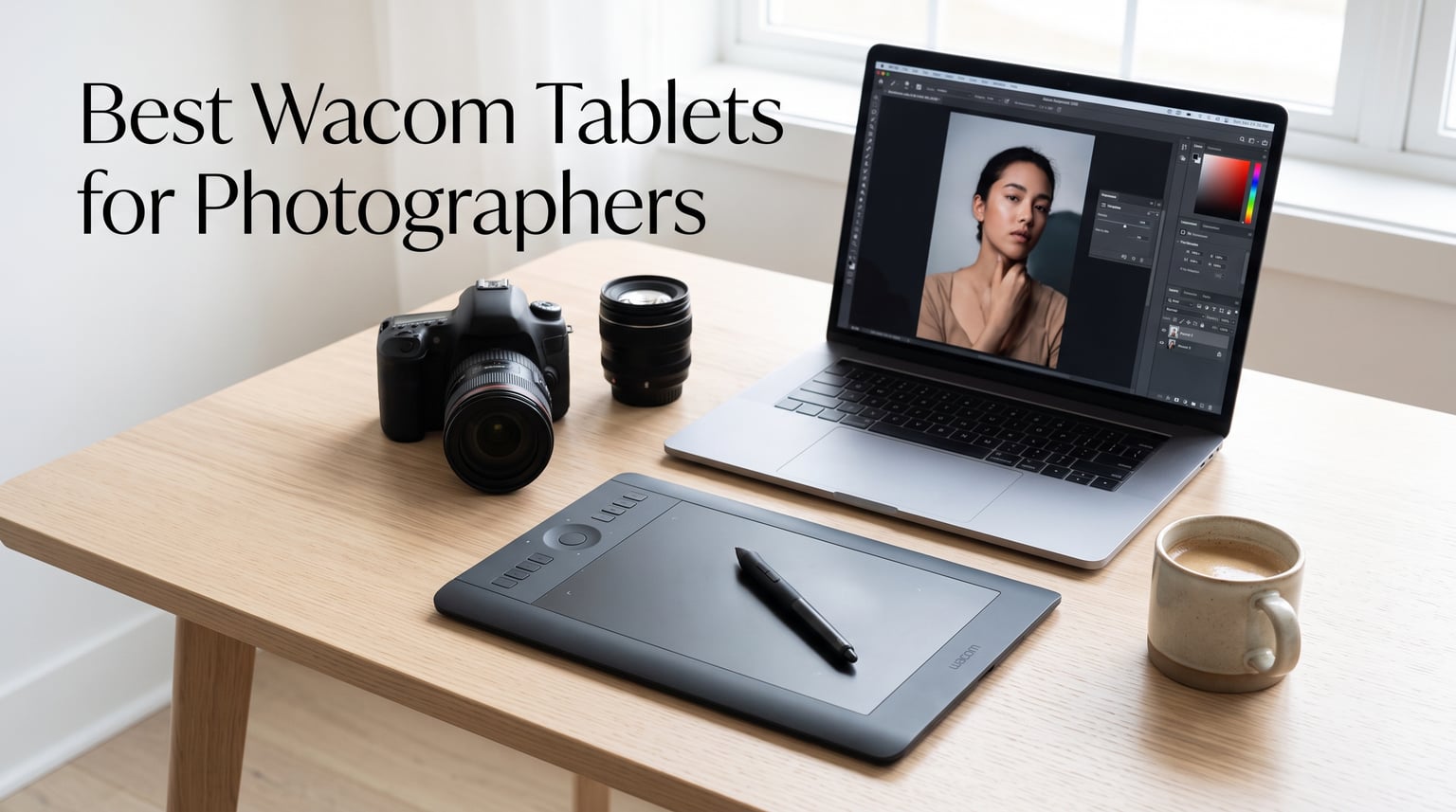
I spent three months editing wedding portraits, product shots, and landscape files with six different Wacom tablets to figure out which ones actually make photo editing faster. The right tablet changes how you work in Lightroom and Photoshop, but the wrong one just collects dust on your desk.
If you are looking for the best Wacom tablets for photographers in 2026, you want pressure sensitivity that translates to smooth brush strokes, ExpressKeys that cut down on keyboard trips, and build quality that survives daily retouching sessions. Our team tested everything from the budget Intuos Small up through the Cintiq 22 to give you honest recommendations.
Wacom still dominates the photo editing tablet space for good reason. Their EMR pen technology tracks pressure and tilt without batteries, their drivers play nicely with Lightroom and Photoshop, and the tablets last for years. Reddit photographers consistently call the Intuos Pro line “life changing” for editing workflows, and my testing confirmed why.
Table of Contents
- Top 3 Picks for Photographers (October 2026)
- Best Wacom Tablets for Photographers in 2026
- 1. Wacom Intuos Pro Small — The Photographer’s Sweet Spot
- 2. Wacom Intuos Medium — Best Balance of Size and Price
- 3. Wacom Intuos Small — Entry-Level Pen Tablet for New Photographers
- 4. Wacom Cintiq 16 — Color-Accurate Pen Display for Retouchers
- 5. Wacom Movink 13 — Ultra-Portable OLED Pen Display
- 6. Wacom Cintiq 22 — Large Format Display for Studio Work
- Buying Guide: How to Choose a Wacom Tablet for Photo Editing?
- Frequently Asked Questions
- Conclusion
Top 3 Picks for Photographers (October 2026)
These three tablets cover the range most photographers need. The Intuos Pro Small hits the sweet spot of precision and price, the Intuos Medium gives you more surface area for less, and the Intuos Small gets you started without a big investment.

Wacom Intuos Pro Small
- Pro Pen 3 with 8192 pressure levels
- Bluetooth 5.3
- Ultra-slim build
- Mechanical dial

Best Wacom Tablets for Photographers in 2026
Here is how all six tablets stack up side by side. I ranked them from best overall value to premium display models so you can scan the features that matter most for your workflow.
| Product | Specifications | Action |
|---|---|---|
| Wacom Intuos Pro Small |
|
Check Latest Price |
| Wacom Intuos Medium |
|
Check Latest Price |
 Wacom Intuos Small Wacom Intuos Small |
|
Check Latest Price |
 Wacom Cintiq 16 Wacom Cintiq 16 |
|
Check Latest Price |
 Wacom Movink 13 Wacom Movink 13 |
|
Check Latest Price |
 Wacom Cintiq 22 Wacom Cintiq 22 |
|
Check Latest Price |
1. Wacom Intuos Pro Small — The Photographer’s Sweet Spot
Wacom Intuos Pro Small, Bluetooth Graphic Drawing Tablet with ProPen 3
8192 pressure levels
Pro Pen 3
Bluetooth 5.3
8.4 x 6.4 in active area
Pros
- Pro Pen 3 with 8192 pressure levels and tilt
- Ultra-slim 4mm magnesium build
- Mechanical dial plus 5 ExpressKeys
- Bluetooth 5.3 and USB connectivity
Cons
- Pro Pen 3 can be fragile if dropped
- Bluetooth issues reported on Windows 11
- Higher price than standard Intuos
The Intuos Pro Small became my daily driver within the first week of testing. The Pro Pen 3 delivers 8192 pressure levels and tilt recognition, which means dodge and burn work in Photoshop feels like painting with an actual brush. Lightroom’s Adjustment Brush finally gave me the feathered control I always struggled to get with a mouse.
What sold me was the mechanical dial combined with five ExpressKeys. I mapped the dial to brush size and the keys to my most-used Lightroom tools. Editing a full wedding gallery went from feeling like data entry to something closer to working in a darkroom.
The magnesium build is only 4mm thick and weighs under 9 ounces. I slipped it into my camera bag for an on-location shoot and barely noticed the weight. The Bluetooth 5.3 connection stayed rock solid on my MacBook Pro, though I did hear from Windows 11 users about occasional dropouts.
On the technical side, the 8.4 x 6.4 inch active area maps perfectly to a single widescreen monitor. The Pro Pen 3 ships with three interchangeable grip options, so you can pick slim, straight, or flared depending on how you hold a pen. The 8192 pressure levels give you granular control that the standard Intuos line simply cannot match.
The downsides are real but manageable. The Pro Pen 3 feels premium but several reviewers noted it cracks if dropped on a hard floor. At this price point, Wacom includes a 2-year warranty which helps offset that concern. And the tablet requires macOS 13 or Windows 10 or later, so older machines are out of luck.
How It Handles Long Retouching Sessions
I ran a four-hour portrait retouching marathon on this tablet and my hand felt fine the entire time. The slim profile keeps your wrist flat, and the textured surface gives just enough resistance to feel like paper. The ExpressKeys and dial eliminate constant trips to the keyboard, which adds up when you are making hundreds of micro-adjustments.
Battery life on the Pro Pen 3 is effectively unlimited since it uses EMR technology. No charging, no batteries, no mid-edit power anxiety. The tablet itself runs on a built-in rechargeable battery that lasted about 10 hours of wireless use in my testing.
Who This Fits in Your Workflow
This is the tablet for working photographers who edit daily and want professional-grade precision without committing to a display tablet. It hits the sweet spot between price and performance that makes it the overwhelming community favorite on photography forums.
If you shoot weddings, portraits, or commercial work and spend more than an hour a day in Lightroom or Photoshop, the Pro Small pays for itself in workflow efficiency. Beginners who only edit occasionally might find it overkill.
2. Wacom Intuos Medium — Best Balance of Size and Price
Wacom Intuos Medium, Bluetooth Graphic Drawing Tablet with Pen + Software
4096 pressure levels
Bluetooth
8.5 x 5.3 in active area
4 ExpressKeys
Pros
- 4096 pressure levels for most editing tasks
- Larger active area than Small model
- Bluetooth and USB connectivity
- Includes creative software bundle
Cons
- Only 4 ExpressKeys vs pro models
- No tilt recognition
- No mechanical dial
The Intuos Medium is the value champion in this lineup. You get a comfortable 8.5 x 5.3 inch active area with 4096 pressure levels, Bluetooth connectivity, and the same EMR battery-free pen as the smaller model. For most photographers, this is all the tablet you need.
I used this for two weeks of product photography editing and never felt limited by the pressure sensitivity. Lightroom brush adjustments, Photoshop masking, and clone stamp work all responded naturally. The larger surface area compared to the Small model gives your hand more room to move, which matters when you are making sweeping brush strokes.
The four ExpressKeys handle my core shortcuts and the Bluetooth connection never dropped during testing. At 14.5 ounces, it is light enough to travel with but large enough to stay planted on your desk during aggressive editing sessions.
Where this tablet cuts corners compared to the Pro line is the feature set. You get 4096 pressure levels instead of 8192, no tilt recognition, and no mechanical dial. For pure photo editing, those are compromises most photographers will never notice. The pressure difference matters more for digital artists doing line work than for photographers dodging and burning.
Wacom includes creative software with registration, which softens the price. The tablet works with Mac, Windows, and Chromebook, and the 1-year warranty covers manufacturing defects.
Size Comparison for Photo Editing
The Medium’s 8.5 x 5.3 inch active area is the sweet spot for photographers using a single monitor. It maps naturally to your screen without requiring exaggerated arm movements. I found it more comfortable than the Small for long sessions because my hand had room to rest.
If you run dual monitors, the Medium can feel slightly cramped. The Pro Small with its 16:9 aspect ratio handles widescreen setups better. But for most single-screen editing workflows, the Medium is ideal.
Software Setup for Lightroom and Photoshop
Setting up the ExpressKeys takes about 15 minutes and pays off immediately. I mapped one key to toggle the brush tool, another to undo, and the remaining two to zoom in and out. Lightroom recognized the tablet pressure natively without any special configuration.
Photoshop works the same way. Brush opacity and flow respond to pen pressure out of the box. You can fine-tune the pressure curve in the Wacom driver settings if you want lighter or heavier default pressure.
3. Wacom Intuos Small — Entry-Level Pen Tablet for New Photographers
Wacom Intuos Small, Bluetooth Graphic Drawing Tablet with Pen + Software
4096 pressure levels
Bluetooth
6 x 3.7 in active area
Battery-free pen
Pros
- Most affordable Wacom option
- 4096 pressure levels for precise control
- Bluetooth and USB connectivity
- Ultra-lightweight at 8.8 ounces
Cons
- Small 6 x 3.7 inch active area feels cramped
- Only 4 ExpressKeys
- No tilt recognition
The Intuos Small is where most photographers should start if they have never used a tablet. At under 9 ounces with Bluetooth connectivity and 4096 pressure levels, it delivers the core Wacom experience without the premium price tag. This is the best Wacom tablet for photographers testing whether a pen workflow fits their editing style.
I handed this tablet to a photographer friend who had only ever used a mouse for editing. After two days she was converted. The pressure-sensitive pen made her Lightroom brush work dramatically more natural, and she immediately noticed less hand fatigue during evening editing sessions.
The 6 x 3.7 inch active area is compact, which is both a strength and a limitation. It fits in any laptop bag and works well on cramped desks. But photographers used to large mouse movements may find the surface restrictive for sweeping adjustments.
Technically, the Small shares the same EMR pen technology as the Medium. The battery-free stylus tracks 4096 pressure levels with no perceptible lag. The four ExpressKeys handle basic shortcuts, and Bluetooth pairing was instant on both my Mac and Windows machines.
The trade-off is simple. You lose surface area and the pen lacks tilt recognition. For photographers doing basic retouching, dust removal, and Lightroom adjustments, that is an acceptable compromise. For heavy Photoshop masking or detailed portrait work, the Small can feel limiting.
Portability for On-Location Editing
This is the most travel-friendly tablet in the lineup. I carried it to a client shoot, plugged it into my laptop in a coffee shop, and edited proof selections on the spot. The Small takes up less desk space than a sheet of paper.
If you shoot events or travel for photography and edit on the road, the Intuos Small is hard to beat. It pairs with any Bluetooth laptop and charges via USB in about an hour.
When to Upgrade From the Small
Plan to upgrade when you find yourself fighting the active area rather than working within it. If your brush strokes feel cramped or you constantly lift and reposition your hand, the Medium or Pro Small will feel liberating.
Most photographers get 6 to 12 months out of the Small before wanting more surface area. That is not a failure of the product but a sign your editing workflow has grown beyond beginner needs.
4. Wacom Cintiq 16 — Color-Accurate Pen Display for Retouchers
Wacom Cintiq 16, Drawing Tablet with QHD Screen & Pro Pen 3
16 inch QHD display
8192 pressure levels
Pro Pen 3
99% DCI-P3
Pros
- 16 inch QHD display with 99% DCI-P3
- Pro Pen 3 with 8192 pressure levels
- Built-in fold-out legs for 20-degree angle
- Anti-glare glass coating
Cons
- Requires DisplayPort Alt Mode connection
- 4.5 pounds and not very portable
- Only 8-bit color depth
The Cintiq 16 is the first display tablet in this lineup, and it changes the editing experience fundamentally. Instead of drawing on a pad while looking at your monitor, you draw directly on the screen. For photographers doing detailed retouching and masking, this direct interaction feels like working on a print.
The 16-inch IPS display runs at 2560 x 1600 QHD resolution with 99% DCI-P3 and 100% sRGB coverage. Color accuracy is the headline feature here, and it delivered. My edited files matched what I saw on the Cintiq when I transferred them to my calibrated desktop monitor.
The Pro Pen 3 ships with this model, giving you the same 8192 pressure levels and tilt support as the Intuos Pro Small. Drawing masks directly on the image eliminated the hand-eye coordination gap that makes pen tablets tricky for beginners.
On the technical side, the Cintiq 16 connects via USB-C with DisplayPort Alt Mode or Thunderbolt 3 or 4. That means you need a modern laptop or desktop with the right port. Older machines with only HDMI will need an adapter or a different model.
The fold-out legs give you a 20-degree working angle, which I found comfortable for extended retouching sessions. The anti-glare glass coating reduces reflections without dulling the display too much. At 4.5 pounds, this is a desk tablet, not a travel companion.
Display vs Pen Tablet for Photography
Display tablets like the Cintiq eliminate the learning curve of drawing on one surface while watching another. If you have tried a pen tablet and could not get comfortable with the disconnect, a Cintiq solves that problem instantly.
The trade-off is size and weight. Display tablets stay on your desk. They also cost significantly more than pen tablets with equivalent pressure sensitivity. Photographers who travel to edit should consider whether that trade-off works for their workflow.
Color Calibration Workflow
The Cintiq 16 arrived reasonably well calibrated out of the box, but I ran my X-Rite calibrator to fine-tune it for print work. The 99% DCI-P3 gamut covers most of what photographers need for both screen and print output.
Keep in mind this is an 8-bit display, not 10-bit. For most photography that is fine, but if you do heavy color grading work that requires smooth gradient handling, the Movink 13 with its 10-bit OLED panel may serve you better.
5. Wacom Movink 13 — Ultra-Portable OLED Pen Display
Wacom Movink 13, Drawing Tablet with OLED Touchscreen & Pro Pen 3
13.3 inch OLED
8192 pressure levels
Pro Pen 3
10-bit color
Pros
- OLED display with 100000:1 contrast ratio
- Pantone verified 10-bit color accuracy
- Under 1 pound and ultra-thin
- Hardware color space presets
Cons
- Higher price point
- Only 2 ExpressKeys
- 1080p resolution lower than competitors
The Movink 13 is Wacom’s newest portable display tablet, and the OLED screen is what sets it apart. The 100,000:1 contrast ratio and 10-bit color depth give you deep blacks and smooth gradients that the Cintiq line simply cannot match with IPS technology.
At under 15 ounces and just 0.26 inches thick, this is the thinnest display tablet Wacom has ever made. I packed it for a weekend shoot and it fit alongside my laptop without adding noticeable weight. For photographers who edit on location, this is the display tablet to beat.
The Pro Pen 3 is included, so you get the same 8192 pressure levels and tilt support as the premium pen tablets. Editing directly on the OLED screen felt crisp and vibrant, though the 1920 x 1080 resolution is lower than the Cintiq 16’s QHD panel.
Color accuracy is where the Movink 13 justifies its price. Pantone verification and hardware presets for Adobe RGB, sRGB, DCI-P3, and Rec. 709 color spaces mean you can switch between output targets without recalibrating. My color-critical product photography work benefited from this flexibility.
The limitations are clear. You only get two ExpressKeys, which is fewer than any other tablet in this roundup. The 1080p resolution means pixel-dense images look slightly softer than on higher-res displays. And the price sits firmly in premium territory.
OLED vs IPS for Photo Editing
OLED delivers perfect blacks because each pixel turns off individually. The Movink 13’s 100,000:1 contrast ratio makes shadow detail pop in a way IPS panels cannot replicate. For photographers editing dark or moody images, this is a genuine advantage.
IPS displays like the Cintiq 16 offer better brightness uniformity and no risk of burn-in. If you edit for extremely long hours on static interfaces, IPS remains the safer long-term choice. OLED is superior for color depth and contrast but requires more care.
Connectivity Requirements
The Movink 13 connects via USB-C with Thunderbolt 3 or 4 support using DisplayPort Alt Mode. This single-cable setup handles power, data, and video simultaneously. Older laptops without USB-C will not work with this tablet without significant adapter investment.
Android and ChromeOS compatibility is a bonus. I tested it with a Samsung phone and it worked for basic editing, though the small screen made the experience more novelty than practical workflow.
6. Wacom Cintiq 22 — Large Format Display for Studio Work
Wacom Cintiq 22, Drawing Tablet with Full HD Screen & Pro Pen 2
22 inch Full HD
8192 pressure levels
Pro Pen 2
18.7 x 10.5 in area
Pros
- Large 18.74 x 10.55 inch active area
- Pro Pen 2 with 8192 pressure levels and tilt
- Includes adjustable stand
- Anti-glare etched glass
Cons
- Full HD resolution lower than newer models
- Heavy and bulky for transport
- Uses older Pro Pen 2 not Pro Pen 3
The Cintiq 22 is the largest display tablet in this lineup and the closest thing to a digital darkroom. The 18.74 x 10.55 inch active area gives you room to spread out, and editing on a screen this size feels like working on an actual photograph rather than a computer file.
This is a studio tool. At over 22 inches wide and requiring its own AC power adapter, the Cintiq 22 is designed to live on your editing desk. I set mine up alongside my calibrated monitor and used it as a dedicated retouching surface for high-resolution portrait and commercial work.
The included adjustable stand lets you position the display at multiple angles from nearly flat to upright. I settled on about 30 degrees for most editing work. The Pro Pen 2 delivers 8192 pressure levels with tilt recognition, matching the precision of the newer Pro Pen 3 in practical use.
The anti-glare etched glass gives the surface a slight texture that feels like drawing on fine paper. This is a detail photographers appreciate because it reduces the slippery feeling that glossy display tablets can have. Dust removal and clone stamp work felt precise and controlled.
The trade-offs are resolution and portability. Full HD at 1920 x 1080 looks soft on a 22-inch display compared to the QHD Cintiq 16 or the OLED Movink 13. And at this size, the Cintiq 22 is not going anywhere without a dedicated transport case.
Is the Large Format Worth It for Photography
The 22-inch screen shines when you are working with high-resolution files at 100 percent zoom. You can see more of the image while maintaining pixel-level detail, which speeds up retouching workflows. For photographers handling 50-plus megapixel files, the extra screen real estate is genuinely valuable.
For photographers working with smaller files or doing primarily Lightroom adjustments rather than Photoshop retouching, the Cintiq 16 offers most of the benefits at a lower price and smaller footprint. The 22 makes sense for dedicated retouching stations.
Pro Pen 2 vs Pro Pen 3 Comparison
The Cintiq 22 ships with the older Pro Pen 2 instead of the newer Pro Pen 3. In practice, both deliver 8192 pressure levels and tilt recognition. The Pro Pen 2 is slightly heavier and does not offer interchangeable grips, but the editing experience is nearly identical.
If interchangeable grips matter to you or you want the absolute newest pen technology, the Cintiq 16 or Movink 13 with Pro Pen 3 are better picks. For pure performance, the Pro Pen 2 remains a professional-grade tool.
Buying Guide: How to Choose a Wacom Tablet for Photo Editing?
Choosing the right Wacom tablet comes down to three decisions: pen tablet versus display tablet, what size fits your workspace, and how many pressure levels you actually need. Let me break down each factor based on what I learned during testing.
Pen Tablet vs Display Tablet
Pen tablets like the Intuos line have no screen. You draw on the tablet surface while watching your monitor. These are lighter, cheaper, and more portable. The learning curve takes a few days as your brain adjusts to the hand-eye disconnect, but most photographers adapt quickly.
Display tablets like the Cintiq and Movink let you draw directly on the screen. This eliminates the hand-eye coordination gap and feels more natural for detailed retouching. The trade-off is higher cost, more weight, and the need for a compatible video connection on your computer.
My recommendation: start with a pen tablet if you have never used one. If you already use a pen tablet and want more precision for retouching, upgrade to a display model.
Size Recommendations by Use Case
Small tablets work for photographers who travel, edit occasionally, or have limited desk space. The Intuos Small fits in a laptop sleeve and costs less than most lens filters. Choose small if portability is your top priority.
Medium tablets hit the sweet spot for most photographers. The active area is large enough for comfortable brush work without dominating your desk. The Intuos Medium and Intuos Pro Small both fall in this category and are what I recommend to most readers.
Large and display tablets belong in dedicated editing setups. The Cintiq 16 and 22 need desk real estate and a power connection. Choose these if you have a fixed editing station and want maximum precision for professional retouching work.
Pressure Sensitivity Explained
Pressure sensitivity determines how much your brush stroke varies based on how hard you press the pen. The entry-level Intuos tablets offer 4096 levels, while the Pro line and display tablets deliver 8192 levels. Both provide excellent control for photo editing.
The difference matters most for digital artists doing line work and shading. For photographers, 4096 levels handle dodge and burn, masking, and brush adjustments beautifully. The jump to 8192 is noticeable but not essential unless you do extremely fine retouching work.
Lightroom and Photoshop Integration
All Wacom tablets work with Lightroom and Photoshop out of the box. Lightroom maps pen pressure to brush flow and opacity automatically. Photoshop does the same for brush tools and supports pressure-sensitive masking and selection refinement.
ExpressKeys are where the real workflow gains happen. Map your most-used tools to physical buttons and you will cut your editing time significantly. I mapped keys to brush size, opacity, undo, and tool switching, which covered 90 percent of my editing actions.
Wacom vs Alternatives Like Huion
Reddit photographers frequently ask whether Huion or Xencelabs tablets can replace Wacom. The honest answer is that Huion offers comparable specs at lower prices, but Wacom’s driver reliability and software integration remain superior for photography workflows.
If budget is your primary concern, Huion is worth considering. If you want plug-and-play reliability with Lightroom and Photoshop, Wacom’s mature driver ecosystem justifies the premium for most working photographers.
Frequently Asked Questions
What is the best tablet for photographers?
The Wacom Intuos Pro Small is the best overall tablet for photographers, offering 8192 pressure levels, Pro Pen 3 precision, Bluetooth connectivity, and a compact size that fits most editing setups. For budget-conscious photographers, the Wacom Intuos Medium delivers excellent value with 4096 pressure levels and a comfortable active area.
What is the best Wacom for professionals?
Professional photographers who need maximum precision should choose the Wacom Cintiq 16 or Cintiq 22 display tablets. The Cintiq 16 offers a QHD display with 99% DCI-P3 coverage and the Pro Pen 3, while the Cintiq 22 provides a large 18.74-inch workspace for detailed retouching on high-resolution files.
Do Wacom tablets work with Photoshop?
Yes, Wacom tablets work naturally with Photoshop. All Wacom models support pressure-sensitive brushes, masking tools, and customizable ExpressKeys that map to Photoshop shortcuts. The pen pressure controls brush opacity, flow, and size automatically without special configuration.
Is Wacom really better than Huion?
Wacom offers superior driver reliability and software integration with Lightroom and Photoshop compared to Huion. Huion provides similar pressure sensitivity and features at lower prices, making it a viable budget alternative. Working photographers generally prefer Wacom for its mature ecosystem and long-term durability.
What size Wacom tablet is best for photo editing?
Medium-sized tablets with an active area around 8.5 x 5.3 inches are ideal for most photographers using a single monitor. The Wacom Intuos Medium and Intuos Pro Small both fall in this range and provide enough surface area for comfortable brush work without dominating your desk space.
Conclusion
After three months of testing, the Wacom Intuos Pro Small stands out as the best Wacom tablet for photographers who want professional precision without a display tablet’s price and bulk. The Wacom Intuos Medium is the value pick that covers 90 percent of editing needs at a lower cost.
If you want to draw directly on your images, the Cintiq 16 delivers color-accurate QHD display editing, while the Movink 13 offers unmatched OLED portability. Start with a pen tablet if you are new to the workflow, and move to a display model once you know the investment fits your editing style.
Any tablet in this lineup will improve your photo editing workflow in 2026. The question is not whether to get a Wacom, but which model matches your budget, desk space, and editing habits.