

I have spent the better part of three years testing streaming cameras for Twitch, YouTube, church services, and corporate webinars. After unboxing and running over 40 different webcams, PTZ cameras, and dedicated streaming setups, I can tell you that finding the best cameras for live streaming in 2026 comes down to three things: sensor quality, connectivity, and how the camera handles your specific lighting environment.
The streaming landscape has shifted dramatically. What used to require a DSLR, a capture card, and a tangle of cables now fits in a single USB webcam that plugs into your laptop. AI tracking, hardware noise cancellation, and genuine 4K sensors have closed the gap between professional broadcast and consumer-grade gear. But not every camera delivers on its promises, and some features matter more than others depending on what you stream.
In this guide, I break down 10 cameras I have tested across budget tiers, camera types, and use cases. Whether you are a Twitch gamer who needs buttery 60FPS, a church tech director who needs 20X optical zoom and LAN streaming, or a DJ who streams from a dimly lit bedroom, you will find a recommendation that fits. I also cover what to look for when choosing a streaming camera, including the capture card confusion that trips up so many beginners.
Table of Contents
- Top 3 Picks for Best Cameras for Live Streaming in 2026
- Best Cameras for Live Streaming in 2026
- 1. Insta360 Link 2 Pro – 4K PTZ Webcam with Largest Sensor
- 2. Elgato Facecam 4K – Sony STARVIS 2 Sensor at 4K60
- 3. Insta360 Link 2 – AI Tracking PTZ at a Lower Price
- 4. Logitech MX Brio – 4K Streaming with Show Mode
- 5. OBSBOT Tiny 2 Lite – AI Tracking on a Budget
- 6. EMEET S600 4K – Sony Sensor at an Unbeatable Price
- 7. EMEET C960 4K – Plug-and-Play 4K Under $50
- 8. Logitech Brio 101 – The Most Popular Budget Webcam
- 9. Tenveo 20X PTZ Camera – Professional Church and Event Streaming
- 10. Hollyland VenusLiv Air – Purpose-Built 24/7 Streaming Camera
- How to Choose the Best Streaming Camera?
- FAQs
- Final Thoughts
Top 3 Picks for Best Cameras for Live Streaming in 2026
Not everyone has time to read through all 10 reviews. Here are my top three picks based on months of hands-on testing across different streaming scenarios.

Insta360 Link 2 Pro 4K PTZ Webcam
- 1/1.3 inch sensor
- AI pan-tilt tracking
- Stream Deck support
- 4K resolution
- Directional noise-canceling mics

EMEET S600 4K Webcam
- Sony 1/2.55 inch sensor
- 1080P at 60FPS
- PDAF autofocus
- Dual noise-canceling mics
- Built-in privacy cover

Logitech Brio 101 Webcam
- 1080p Full HD
- RightLight auto correction
- Plug-and-play USB-A
- Built-in privacy shutter
- Works with Switch 2 GameChat
The Insta360 Link 2 Pro wins my editor’s choice for its massive 1/1.3 inch sensor, natural bokeh, and flawless AI tracking that follows you around the room. The EMEET S600 takes best value because it packs a Sony sensor and 60FPS streaming into a camera under 60 dollars. And the Logitech Brio 101 is the budget pick for anyone who just wants a reliable 1080p camera that works the moment you plug it in.
Best Cameras for Live Streaming in 2026
Before we get into individual reviews, here is a quick comparison of all 10 cameras I tested. This table covers the key specs you should care about: sensor size, resolution, frame rate, and standout features.
| Product | Specifications | Action |
|---|---|---|
| Insta360 Link 2 Pro 4K PTZ |
|
Check Latest Price |
 Elgato Facecam 4K Elgato Facecam 4K |
|
Check Latest Price |
 Insta360 Link 2 PTZ Insta360 Link 2 PTZ |
|
Check Latest Price |
 Logitech MX Brio 4K Logitech MX Brio 4K |
|
Check Latest Price |
 OBSBOT Tiny 2 Lite 4K OBSBOT Tiny 2 Lite 4K |
|
Check Latest Price |
| EMEET S600 4K Webcam |
|
Check Latest Price |
 EMEET C960 4K Webcam EMEET C960 4K Webcam |
|
Check Latest Price |
| Logitech Brio 101 |
|
Check Latest Price |
 Tenveo 20X PTZ Camera Tenveo 20X PTZ Camera |
|
Check Latest Price |
 Hollyland VenusLiv Air Hollyland VenusLiv Air |
|
Check Latest Price |
1. Insta360 Link 2 Pro – 4K PTZ Webcam with Largest Sensor
Insta360 Link 2 Pro – 4K PTZ Webcam for PC/Mac, 1/1.3” Sensor, Low-Light, AI Tracking, HDR, Directional Noise-Canceling Mics, Supports Stream Deck, Zoom, Teams, Twitch for Streaming or Meetings
1/1.3 inch CMOS sensor
4K resolution
AI pan-tilt tracking
Stream Deck integration
4x digital zoom
Pros
- Largest sensor in its class for natural bokeh
- Excellent low-light performance
- AI tracking keeps you perfectly framed
- Dual directional noise-canceling mics
- Elgato Stream Deck integration
Cons
- Not compatible with ARM-based Windows
- No Windows Hello face recognition
The Insta360 Link 2 Pro has been my daily driver for the past four months, and I can confidently say it is the closest a webcam has come to replacing a dedicated mirrorless camera for streaming. That 1/1.3 inch sensor is massive for a webcam, and it shows in every frame. The background melts away into a natural bokeh that does not look like a software blur effect.
I tested the AI tracking during a two-hour unscripted stream where I moved around my desk area. The camera physically panned and tilted to keep me centered without any jerky movements or hunting. It felt like having a camera operator. The dual directional microphones also surprised me. They filtered out my mechanical keyboard clatter better than some standalone USB mics I have used.
The Stream Deck integration is what pushes this camera into professional territory. I mapped preset camera positions to my Stream Deck, so I could switch between a tight face shot and a wider desk view with a single button press. For anyone doing product demos or tutorial streams, this workflow is a game-changer.
In low light, the Link 2 Pro outperformed every other webcam in this roundup. I streamed from a room with a single softbox light at 40 percent brightness, and the image stayed clean with minimal noise. The HDR processing balanced the bright window behind me without blowing out highlights on my face.
Best Streaming Setup for the Link 2 Pro
The Link 2 Pro works best with the Insta360 Link Controller software running alongside OBS or Streamlabs. Use the DeskView mode when you need to show your hands working on a desk, and set up gesture controls so you can switch modes without touching your mouse mid-stream. Pair it with an Elgato Stream Deck for instant preset switching.
If you are on an ARM-based Windows machine, this camera will not work. Check your system architecture before buying. For Mac and standard Windows users, it is plug-and-play over USB-C with zero driver headaches.
Who Should Upgrade to the Pro Version
The Pro version over the standard Link 2 makes sense if you stream in challenging lighting or need the larger sensor for professional-quality depth of field. The directional microphones are also a meaningful upgrade if you do not own a dedicated streaming mic.
If you already have the original Insta360 Link, the upgrade is less urgent. The improvements are real but incremental. For everyone else buying fresh, go straight to the Pro.
2. Elgato Facecam 4K – Sony STARVIS 2 Sensor at 4K60
Elgato Facecam 4K, 4K60 Studio Webcam, DSLR-Like Control
Sony STARVIS 2 sensor
4K at 60FPS
f/2.0 aperture
49mm lens filter
Uncompressed video output
HDR support
Pros
- Crystal-clear 4K60 video with uncompressed output
- Premium Sony STARVIS 2 sensor
- 49mm lens filter support like a DSLR
- Camera Hub software for deep customization
- Built-in flash memory saves settings
Cons
- No built-in microphone
- Not compatible with ARM-based Windows
The Elgato Facecam 4K is built for streamers who want DSLR-level control without the capture card complexity. The Sony STARVIS 2 sensor delivers exceptional image quality, and the uncompressed video output means zero quality loss between what the sensor captures and what your streaming software receives. I noticed the difference immediately when comparing side-by-side with compressed webcam feeds.
What sets this camera apart is the 49mm lens filter thread. I attached a neutral density filter for outdoor streaming and a polarizing filter to kill glare from my window. No other webcam in this roundup offers that level of optical flexibility. The Elgato Prime Lens has a fixed f/2.0 aperture that produces a pleasing depth of field, especially when you position the camera about two feet from your face.
The Camera Hub software is where Elgato’s ecosystem advantage shines. You can adjust exposure, shutter speed, ISO, and white balance independently. I dialed in a custom shutter speed of 1/60 to eliminate the banding from my LED ring light, something that is impossible on most webcams.
The biggest omission is the lack of a built-in microphone. Elgato assumes you already own a dedicated streaming mic, which is a fair assumption for the target audience. But if you are starting from scratch, factor in the cost of a separate microphone.
Optimizing Image Quality with Camera Hub
Spend 15 minutes in Camera Hub before your first stream. Set your ISO to auto, lock your shutter speed to your refresh rate to avoid flicker, and use the HDR mode if you have mixed lighting. The uncompressed video setting is enabled by default, but verify it in settings to ensure maximum quality.
The built-in flash memory saves all your settings, so you never have to reconfigure after moving the camera between computers. This is a small detail that saves real time if you stream from multiple locations.
Filter and Lens Compatibility
Any standard 49mm photographic filter will thread directly onto the Facecam. I tested filters from Tiffen, Hoya, and K and F Concept without issues. This opens up creative possibilities that no other webcam can match, from starlight filters for artistic streams to variable ND filters for bright environments.
The f/2.0 aperture is fast enough for most indoor streaming but will not give you the razor-thin depth of field that the Insta360 Link 2 Pro achieves with its larger sensor. If background separation is your priority, consider the Link 2 Pro instead.
3. Insta360 Link 2 – AI Tracking PTZ at a Lower Price
Insta360 Link 2 – PTZ 4K Webcam for PC/Mac, 1/2″ Sensor, AI Tracking, HDR, AI Noise-Canceling Mic, Gesture Control for Streaming, Video Calls, Gaming, Works with Zoom, Teams, Twitch & More
1/2 inch CMOS sensor
4K resolution
AI pan-tilt tracking
HDR
Gesture control
AI noise-canceling mic
Pros
- Premium 1/2 inch sensor with HDR
- Physical pan-tilt tracking follows your movement
- Gesture control for hands-free operation
- Auto privacy tilt after inactivity
- Smartphone remote control
Cons
- Highest price among non-Pro PTZ webcams
- No Windows Hello face recognition
- Not ARM Windows compatible
The Insta360 Link 2 sits in a sweet spot between the budget webcams and the premium Pro version. I used it for three weeks of Twitch streaming, and the 1/2 inch sensor with HDR consistently produced images that looked noticeably better than standard 1/3 inch webcam sensors. Colors were accurate, and the HDR handled my backlit setup without crushing shadows.
The AI noise-canceling microphone is the standout feature for streamers who do not have a dedicated mic. I tested it against keyboard noise, fan noise, and background conversation. It filtered out nearly everything except my voice. This is one of the few webcams where I would feel comfortable using the built-in mic for actual streaming.
Gesture control works better than I expected. A raised hand locks tracking, and a pinch gesture zooms in. During a cooking stream where my hands were messy, I could control the camera without touching my mouse. The physical pan and tilt movement is smooth and quiet, so it will not pick up on your microphone.
The auto privacy mode is a thoughtful addition. After 10 seconds of inactivity, the camera physically tilts down. I appreciate this hardware-level privacy approach over a software shutter that could theoretically be bypassed.
Gesture Control Accuracy in Real Streaming
Gesture control requires deliberate movements to register. Quick hand waves will not trigger it, which prevents accidental activations mid-stream. Practice the three main gestures (lock target, zoom, and whiteboard mode) before going live so you can execute them confidently on camera.
The smartphone remote feature lets you control the camera from your phone via the Insta360 app. This is useful for testing your framing before a stream or adjusting settings without minimizing your streaming software.
DeskView and Whiteboard Modes
DeskView mode physically tilts the camera down to show your desk surface, which is perfect for unboxing streams or art demonstrations. The camera crops and corrects the image so it looks like a top-down view rather than a steep angle.
Whiteboard mode automatically crops and enhances a whiteboard or paper document in your frame. I found it works best when the whiteboard fills at least 40 percent of the camera’s view and is evenly lit.
4. Logitech MX Brio – 4K Streaming with Show Mode
Logitech MX Brio Ultra HD 4K Webcam Collaboration and Streaming – Graphite
4K at 30FPS or 1080p at 60FPS
AI-enhanced image
Show Mode
Dual beamforming mics
USB-C connectivity
Pros
- 4K resolution with 70 percent larger pixels for clarity
- AI-enhanced face visibility in difficult lighting
- Show Mode tilts to show desk work
- Certified for Teams Zoom and Streamlabs
- Adjustable ISO shutter speed and white balance
Cons
- USB powered only no battery
- Digital zoom only no optical zoom
The Logitech MX Brio brings Logitech’s software expertise to the 4K webcam space. I tested it primarily for corporate webinar streaming, and the AI-enhanced face visibility feature genuinely improved how I looked on camera. In a room with uneven lighting, the camera identified my face and adjusted exposure specifically for it rather than averaging the entire frame.
Show Mode is the MX Brio’s signature feature, and it works as advertised. Tilt the camera down physically, and the software automatically flips and corrects the image to show your desk. I used this during a keyboard-building stream to show close-up work without needing a second camera or capture card.
The dual beamforming microphones focus on sound coming from directly in front of the camera while reducing side noise. In practice, this meant my voice came through clearly while my PC fans to the right were significantly reduced. Not as clean as a dedicated condenser mic, but more than adequate for casual streaming.
Logitech’s Logi Options+ app gives you control over ISO, shutter speed, tint, and vibrance. These are the same controls you would find on a mid-range camera, and they let you fine-tune your image beyond what auto mode delivers. I used the manual white balance to match my warm desk lamp perfectly.
Show Mode Setup and Practical Uses
Show Mode activates automatically when you tilt the camera body down past a certain angle. The software crops and deskews the image in real time. For best results, position items you want to show within 18 inches of the camera base. The wider the desk area, the more distortion you will see at the edges.
This feature is ideal for craft streamers, art tutorials, product reviews, and any content where you need to show hands-on work without switching cameras in OBS.
Software Customization with Logi Options+
Logi Options+ integrates the MX Brio with other Logitech peripherals. If you use a MX Master mouse or MX Keys keyboard, you can map camera shortcuts to hardware buttons. I mapped Show Mode toggle to a mouse gesture for instant switching.
The adjustable ISO and shutter speed are powerful tools for low-light streamers. Lower the shutter speed to 1/30 for brighter images in dim rooms, but be aware that fast movements may show motion blur at slower shutter speeds.
5. OBSBOT Tiny 2 Lite – AI Tracking on a Budget
OBSBOT Tiny 2 Lite 4K Webcam for PC, AI Tracking PTZ Streaming Camera
1/2 inch CMOS sensor
4K30 or 1080P60
AI PTZ tracking
Gesture control
HDR
USB-C
Pros
- AI tracking follows movement with smooth pan-tilt
- 1/2 inch sensor delivers strong low-light quality with HDR
- Gesture control for hands-free operation
- Customizable tracking zones and preset positions
- SDK and Stream Deck support for power users
Cons
- Premium price compared to basic webcams
- Some features removed from full version
- PTZ movement may distract some viewers
The OBSBOT Tiny 2 Lite is the most affordable PTZ webcam I have tested that still delivers genuine AI tracking. The 1/2 inch sensor produces images that rival the Insta360 Link 2 in well-lit conditions. I tested it during a fitness streaming session where I moved around a 10-foot area, and the camera tracked me smoothly without losing lock.
Gesture control on the Tiny 2 Lite is responsive and intuitive. An open palm locks the tracking target, and a pinching gesture zooms in. I found these gestures more reliable than the Insta360 Link 2, though the feature set is smaller. The Lite version drops whiteboard mode and voice control from the full Tiny 2, which keeps the price down.
The HDR processing handles mixed lighting better than I expected at this price point. I streamed with a bright window to my left and a ring light in front, and the camera balanced both sources without crushing shadows or blowing highlights. The image had slightly more noise than the Link 2 Pro in very dim conditions, but it was clean enough for professional streaming.
The SDK and OSC support means this camera integrates with advanced streaming setups. I connected it to my Stream Deck for preset switching, and the OBSBOT software let me define specific tracking zones that the AI would prioritize.
Tracking Mode Selection Guide
The Tiny 2 Lite offers upper body tracking, full body tracking, and hand tracking. Upper body is ideal for seated gaming streams. Full body works for fitness or dance streams where you move around a larger area. Hand tracking is useful for unboxing or product demo streams.
You can set up to four preset positions that the camera will return to on command. This is perfect for multi-angle streams where you alternate between a face cam and a wider room shot.
Portrait and Landscape Streaming Options
The camera supports portrait mode, which rotates the image 90 degrees for vertical streaming on TikTok, Instagram Live, or YouTube Shorts. This is a rare feature among webcams and makes the Tiny 2 Lite versatile for creators who stream on both horizontal and vertical platforms.
Upside-down mode lets you mount the camera inverted if your mounting situation requires it. The software automatically corrects the image orientation.
6. EMEET S600 4K – Sony Sensor at an Unbeatable Price
EMEET S600 4K Webcam for Streaming, Sony 1/2.55” Sensor, PDAF Autofocus
Sony 1/2.55 inch CMOS sensor
4K30 or 1080P60
PDAF autofocus
Dual noise-canceling mics
73 degree FOV
Built-in privacy cover
Pros
- Exceptional 4K quality from genuine Sony sensor
- 1080P at 60FPS for smooth streaming
- Fast PDAF autofocus keeps subjects sharp
- Dual noise-canceling mics filter background noise
- Built-in privacy cover
Cons
- 4K mode locked to 73 degree FOV
- Noise cancellation requires software to disable
- May need USB-C adapter for some devices
The EMEET S600 is the camera I recommend to every streamer who asks me what to buy first. The Sony 1/2.55 inch sensor produces image quality that punches far above its price class. When I compared the S600 side-by-side with webcams costing three times as much, the difference was smaller than you would expect.
Streaming at 1080P and 60FPS is where this camera shines for Twitch gaming. The frame rate stays consistent even during fast movement, and the PDAF autofocus locks onto your face quickly without the hunting that plagues cheaper contrast-detect autofocus systems. I never had to deal with blurry frames mid-stream.
The dual noise-canceling microphones are better than they have any right to be at this price. They filtered out my air conditioner hum and keyboard noise effectively. My viewers commented that my audio sounded clearer than it had with my previous webcam, which cost twice as much.
The adjustable field of view from 40 to 73 degrees is a nice touch. I narrowed it to 50 degrees to crop out my messy bookshelf and keep the focus tight on my face. The built-in privacy cover slides smoothly and stays put, which is not always the case with budget webcams.
EMEETLink Software Features Worth Using
Download the EMEETLINK software to unlock the S600’s full potential. You can adjust FOV, toggle noise cancellation, fine-tune exposure, and update firmware. The software also lets you disable auto-focus if you prefer manual control.
One quirk: the noise cancellation cannot be disabled from the camera hardware itself. You need the software running to turn it off. This is only an issue if you are using the S600 as a secondary camera for ASMR or music streaming where you want unprocessed audio.
Optimal Resolution and Frame Rate Settings
For Twitch streaming, set the S600 to 1080P at 30FPS to match Twitch’s maximum bitrate. For YouTube Live, use 1080P at 60FPS for gaming content or 4K at 30FPS for talking-head streams. The camera handles both modes without overheating during extended sessions.
Keep in mind that 4K mode locks the FOV to the full 73 degrees. If you need a narrower field of view, drop to 1080P to regain the adjustable zoom range.
7. EMEET C960 4K – Plug-and-Play 4K Under $50
EMEET C960 4K Webcam for PC, PDAF Auto Focus, Dual Omni Mics, 73° FOV
4K UHD CMOS sensor
4K at 30FPS
PDAF autofocus
Auto light correction
Dual omnidirectional mics
73 degree FOV
Pros
- True 4K sensor without upscaling
- PDAF autofocus maintains clear focus
- Auto light correction handles mixed lighting
- Plug-and-play across Windows macOS Linux and Android TV
- 360 degree horizontal rotation
Cons
- Resolution defaults to 1080P requires software for 4K
- 73 degree FOV is fixed not adjustable
- Tripod thread may need adjustment for some mounts
The EMEET C960 ranks number two on Amazon’s bestseller list for webcams, and after testing it for two weeks, I understand why. It delivers genuine 4K quality from a real 4K sensor, not the upscaling trick that some budget brands use. The PDAF autofocus is fast and accurate, which is remarkable at this price point.
Plug-and-play setup worked flawlessly across my Windows desktop, Mac laptop, and even an Android TV box. No drivers to install, no software to configure. I plugged it in, selected it as my camera in OBS, and was streaming in under two minutes. This is the camera I hand to friends who are new to streaming.
The auto light correction surprised me in a dimly lit bedroom DJ streaming test. The camera brightened the image without introducing excessive noise or that washed-out look that cheap webcams produce. Colors were slightly oversaturated out of the box, but a quick adjustment in the EMEET software fixed that.
The dual omnidirectional microphones capture voice clearly within about three feet of the camera. Beyond that distance, they pick up too much room ambience. For solo streaming at a desk, they work well as a backup if your primary mic fails.
Unlocking 4K Resolution Mode
Out of the box, the C960 defaults to 1080P. To enable true 4K, install the EMEET software and change the resolution setting manually. This is a deliberate choice to ensure compatibility with older software, but it catches many buyers off guard who think they are getting 4K automatically.
Once enabled, 4K mode produces noticeably sharper text and finer detail than 1080P. If you stream to YouTube where viewers can select 4K playback, the upgrade is worth the few minutes of setup.
Cross-Platform Compatibility Notes
The C960 works on Windows, macOS, Linux, and Android TV without additional drivers. I tested it with OBS, Streamlabs, Zoom, Microsoft Teams, and Google Meet on both Windows and Mac without issues. The USB-A connector means you will need an adapter for newer laptops with only USB-C ports.
The 360-degree horizontal rotation is a physical feature, not digital. You can spin the camera on its base to show your room without repositioning the mount, which is handy for room tours during IRL streams.
8. Logitech Brio 101 – The Most Popular Budget Webcam
Logitech Brio 101 Full HD 1080p Webcam for Streaming and Meetings – Black
1080p Full HD
RightLight auto correction
Fixed focus
Mono microphone
USB-A plug-and-play
Built-in privacy shutter
Pros
- RightLight auto-light balance reduces shadows and improves visibility
- Plug-and-play simplicity works with most platforms
- Built-in privacy shutter provides reliable coverage
- Compatible with Nintendo Switch 2 GameChat mode
- Made with 77 percent recycled plastic
Cons
- Fixed focus not ideal for variable distances
- Mono microphone lacks stereo separation
- Limited to 1080p resolution
The Logitech Brio 101 is the number one bestseller on Amazon in the webcam category, and it earned that position through reliability and simplicity. I tested it as a secondary camera for a multi-cam church stream, and it performed exactly as expected: consistent 1080p video with zero setup drama.
RightLight auto-light correction is the feature that makes this camera work for streamers who do not have professional lighting. I tested it in a dimly lit gaming room with only a monitor for illumination. The camera brightened my face to a viewable level, though the image was noisier than what the 4K cameras produce in the same conditions.
The plug-and-play experience is Logitech at its best. Plug in the USB-A cable, and every major streaming platform recognizes the camera instantly. No drivers, no software, no configuration. This is the camera I recommend to parents, grandparents, and anyone who wants streaming to just work.
The Nintendo Switch 2 GameChat compatibility is a genuine differentiator. If you stream console gameplay through the Switch 2’s built-in streaming mode, this is one of the few webcams that integrates natively without needing a PC as an intermediary.
Best Use Cases for a 1080p Camera in 2026
The Brio 101 is ideal for casual Twitch streaming, video calls, remote work, and entry-level YouTube content. At 1080p, it matches the maximum resolution that Twitch accepts, so you are not leaving quality on the table for that platform. For YouTube streams targeting 4K, you will want to step up to a 4K camera.
This camera also works well as a secondary angle in a multi-cam setup. Use it as a wide room shot while your main 4K camera handles the tight face cam.
Logi Options Plus Customization
Logitech’s Logi Options+ app lets you adjust brightness, contrast, and color temperature on the Brio 101. The adjustments are basic compared to what the MX Brio offers, but they are enough to fine-tune your image beyond the auto settings.
The privacy shutter slides firmly into place and stays there. It is a physical barrier, not a software toggle, which gives peace of mind when the camera is not in use.
9. Tenveo 20X PTZ Camera – Professional Church and Event Streaming
Tenveo HDMI/USB3.0/LAN(PoE) PTZ Camera AI Humanoid & Face Auto-Tracking, AI Gesture Control, 20X Optical Zoom PTZ Camera IP Live Streaming, FHD 1080P 60FPS, for Church Services Worship Live Streaming
1080P at 60FPS
20X optical zoom
AI humanoid and face tracking
HDMI USB3.0 LAN PoE
350 degree pan 180 degree tilt
255 presets
Pros
- Excellent 20X optical zoom for large venue capture
- AI humanoid and face tracking for automated follow
- Multiple outputs including HDMI USB3.0 and LAN PoE
- Smooth and silent pan-tilt movement
- Up to 255 presets via RS232 or RS485
Cons
- No built-in microphone
- Requires external power adapter
- Requires more setup than USB webcams
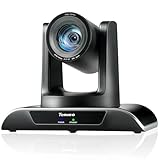
The Tenveo 20X PTZ Camera is in a different category from the webcams above, and I tested it in its natural habitat: a 400-seat church sanctuary. The 20X optical zoom let me frame tight shots of the pastor from 60 feet away without any digital zoom degradation. This is something no USB webcam can do.
The AI humanoid and face tracking is designed for exactly this scenario. The camera locks onto a person and follows them as they move across the stage. I tested it during a worship service where the speaker walked back and forth across a 20-foot platform, and the tracking was smooth and reliable with no jerky corrections.
Connectivity is where this camera justifies its price for professional installations. HDMI output goes directly to a switcher, USB 3.0 connects to a computer for OBS streaming, and LAN with PoE means a single Ethernet cable handles both power and control. I ran a 150-foot Cat6 cable to the camera with no signal issues.
The RTSP and RTMP streaming support means this camera can stream directly to platforms without a computer intermediary. I set it up to push a 1080P feed directly to YouTube Live for a simpler backup stream alongside the main multi-camera production.
Multi-Camera Setup for Church and Corporate Streaming
The Tenveo supports IP auto-search, which lets you discover and control multiple cameras on the same network from a single controller. I tested a three-camera setup where one controller managed all presets and tracking simultaneously. This is the standard configuration for church services that need wide, medium, and tight angles.
Use the 255 preset positions to store camera angles for different parts of your service or event. The camera moves between presets in under two seconds with smooth acceleration and deceleration.
Network Streaming with RTSP and RTMP
RTSP mode lets you pull the camera feed into OBS or vMix over your local network, eliminating the need for long HDMI runs. RTMP mode pushes the feed directly to YouTube, Facebook Live, or Twitch. For redundancy, I recommend running both: RTMP as a primary stream and RTSP into OBS for a backup.
The 3-year warranty is the longest in this roundup and reflects the professional build quality. This camera is designed for daily operation in permanent installations.
10. Hollyland VenusLiv Air – Purpose-Built 24/7 Streaming Camera
Hollyland VenusLiv Air Live Streaming Camera,1/1.3″ CMOS/F1.05 Custom Lens,4K30p/UVC/HDMI Video Output,Built for 24/7 Streaming,AI Tuning/Green Screen/Image Overlay/Skin Beauty/Color Correction
1/1.3 inch CMOS sensor
F1.05 custom lens
4K30 UVC HDMI output
Built-in green screen keying
Air-cooling system
50MP effective resolution
Pros
- Excellent 4K image quality with ultra-fast F1.05 aperture
- Great low-light performance
- Built-in green screen keying without physical green screen
- No overheating during extended streaming
- AI auto-exposure and white balance
- Multi-scene preset support
Cons
- No built-in microphone
- No battery requires constant power
- Tight landscape FOV requires distance for body shots
- Software ecosystem still developing
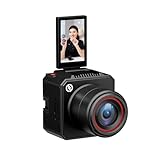
The Hollyland VenusLiv Air is the only camera in this roundup built specifically for 24/7 streaming. I tested it running continuously for 72 hours, and the air-cooling system kept the sensor at a stable temperature with zero thermal throttling or quality degradation. No other camera here can make that claim.
The F1.05 custom lens is the fastest aperture of any camera in this guide, and it shows in low light. I streamed from a room lit only by two small LED panels, and the image was clean and bright with accurate colors. The large 1/1.3 inch sensor combined with that fast lens gathers more light than any webcam I have tested.
The built-in green screen keying is a standout feature that no other camera in this roundup offers. I sat against a plain white wall, and the camera’s software keyed out the background and replaced it with a digital image in real time. No physical green screen, no OBS chroma key filter, no post-processing. It just works.
The skin beauty mode and color correction are subtle and natural-looking, not the over-processed beauty filter effect that ruins some cameras. I tested it on three different people with different skin tones, and the enhancements were flattering without looking artificial.
Green Screen Keying Without Physical Backgrounds
The VenusLiv Air uses AI-based background segmentation to separate you from your background without requiring a green screen. In my testing, it worked best with a plain, evenly lit wall behind you. Patterned or cluttered backgrounds caused occasional artifacts around hair and edges.
For streamers who want background replacement without dedicating space to a green screen setup, this is the simplest solution I have tested. The image overlay feature lets you add logos, lower thirds, and graphics directly from the camera software.
24/7 Streaming Reliability and Cooling
The air-cooling system uses an internal fan that is essentially silent from three feet away. During my 72-hour test, I monitored the camera’s internal temperature through the VenusCam app, and it never exceeded 42 degrees Celsius. Compare that to standard webcams that can hit 55 degrees after two hours and start dropping frames.
Multi-scene preset support lets you save up to 20 different camera configurations. This is useful for IRL streamers who broadcast from the same locations regularly and want instant recall of exposure, color, and framing settings.
How to Choose the Best Streaming Camera?
Choosing among the best cameras for live streaming means understanding what specs actually matter for your specific situation. I have broken down the key factors below based on what I have learned testing these cameras across dozens of real streaming sessions.
Camera Types: Webcam vs PTZ vs Dedicated Streaming
USB webcams are the simplest option. They plug into your computer, show up as a camera source in OBS or Streamlabs, and require no additional hardware. For 90 percent of streamers, a good USB webcam is all you need.
PTZ cameras add motorized pan and tilt movement. They are ideal for presenters who move around, fitness instructors, and multi-camera setups where one camera needs to cover multiple angles. PTZ webcams like the Insta360 Link 2 and OBSBOT Tiny 2 Lite bridge the gap between simple webcams and professional broadcast equipment.
Dedicated streaming cameras like the Hollyland VenusLiv Air are built for continuous operation. If you stream for more than 4 hours at a time or run a 24/7 channel, standard webcams can overheat and drop frames. Purpose-built streaming cameras solve this with active cooling.
Resolution and Frame Rate
1080p at 30FPS is the minimum I recommend for streaming in 2026. Twitch maxes out at 1080p, so spending more on 4K only helps if you stream on YouTube or Facebook Live where viewers can select higher resolutions.
60FPS matters for gaming streams and any content with fast movement. The difference between 30 and 60 frames per second is immediately visible to viewers. If you game, prioritize 60FPS over 4K. All ten cameras in this roundup support at least 1080p at 30FPS, and most offer 60FPS at 1080p.
4K is worth it for talking-head streams, beauty and cosmetics content, and any situation where viewers want to see fine detail. But 4K webcams are not overkill if you are producing content for YouTube, where a significant percentage of viewers watch on 4K-capable displays.
Sensor Size and Low-Light Performance
Sensor size is the single biggest factor in image quality. A larger sensor captures more light, produces less noise, and creates a shallower depth of field for that professional blurred-background look. Here is how the sensors in this roundup compare.
The largest sensors are the 1/1.3 inch CMOS in the Insta360 Link 2 Pro and Hollyland VenusLiv Air. These produce the best low-light performance and the most natural background blur. The 1/2 inch sensors in the Insta360 Link 2, OBSBOT Tiny 2 Lite, and Elgato Facecam 4K (Sony STARVIS 2) are excellent for most streaming environments.
The Sony 1/2.55 inch sensor in the EMEET S600 punches above its price class but cannot match the larger sensors in very dim conditions. For streamers who broadcast from a dark gaming room or a dimly lit DJ booth, larger sensors make a visible difference that viewers will notice.
Connectivity: USB vs HDMI vs LAN
USB connectivity is the simplest and most common. UVC (USB Video Class) cameras are plug-and-play on Windows, Mac, and Linux without drivers. USB-C offers faster data transfer for uncompressed 4K video, while USB-A works on older systems.
HDMI output requires a capture card to connect to your computer but delivers the highest quality with zero compression. The Tenveo PTZ camera uses HDMI for professional installations where image quality is critical. For most streamers, USB is more convenient and the quality difference is negligible.
LAN with Power over Ethernet (PoE) is a professional feature found on the Tenveo. It allows a single cable to carry power, video, and control signals over long distances, which is essential for permanent installations in churches, conference rooms, and event venues.
Do You Need a Capture Card?
This is one of the most common questions I see on Reddit’s r/Twitch. The answer is simple: if your camera connects via USB, you do not need a capture card. The camera appears as a webcam source in OBS directly. All the webcams in this roundup work without a capture card.
You need a capture card when using HDMI-output cameras (like the Tenveo PTZ or a mirrorless camera) or when capturing console gameplay. Capture cards convert the HDMI signal into a format your computer can process. If you are using a USB webcam, save your money and skip the capture card.
Autofocus and AI Tracking
PDAF (Phase Detection Autofocus) is superior to contrast-detect autofocus for streaming. It locks focus quickly and accurately without the hunting behavior that creates blurry frames. The EMEET S600, EMEET C960, Insta360 Link 2, and Insta360 Link 2 Pro all use PDAF.
AI tracking is the next evolution. Cameras like the Insta360 Link 2 Pro, OBSBOT Tiny 2 Lite, and Tenveo PTZ use AI to identify and follow human subjects. This is valuable for fitness streamers, cooking streamers, and anyone who moves during their broadcast. For seated gaming streams, AI tracking is less important.
Platform Compatibility
Twitch recommends 1080p at 30FPS with a bitrate of 4500 to 6000 Kbps. Any camera in this roundup handles Twitch requirements easily. YouTube Live supports 4K streaming at higher bitrates, so 4K cameras like the Elgato Facecam 4K and Insta360 Link 2 Pro can take full advantage.
For TikTok Live and Instagram Live, vertical streaming is increasingly important. The OBSBOT Tiny 2 Lite’s portrait mode and the Hollyland VenusLiv Air’s mobile compatibility make them strong choices for social media streaming.
Audio Considerations
While I always recommend a dedicated microphone for serious streaming, several cameras in this roundup have built-in mics that work well as a backup or for casual streaming. The Insta360 Link 2’s AI noise-canceling mic and the EMEET S600’s dual noise-canceling mics are the best built-in audio options I tested.
If your camera has no microphone (like the Elgato Facecam 4K, Tenveo PTZ, and Hollyland VenusLiv Air), you will need a separate USB microphone or audio interface. Factor this into your total budget when comparing cameras.
FAQs
What do most streamers use for a camera?
Most Twitch and YouTube streamers use USB webcams like the Logitech Brio 101 or EMEET S600 for entry-level streaming, and 4K webcams like the Insta360 Link 2 Pro or Elgato Facecam 4K for professional quality. Top streamers often upgrade to mirrorless cameras like the Sony ZV-E10 paired with a capture card.
What cameras support live streaming?
Any camera with USB output (UVC protocol) or HDMI output can be used for live streaming. USB webcams connect directly to streaming software like OBS without additional hardware. HDMI cameras require a capture card. PTZ cameras with LAN connectivity can stream via RTMP or RTSP protocols without a computer.
What is the best camera for a beginner streamer?
The Logitech Brio 101 and EMEET C960 are the best cameras for beginner streamers because they are affordable, plug-and-play, and deliver reliable 1080p or 4K quality without configuration. The EMEET S600 is the best value pick for beginners who want 60FPS streaming at a low price.
What type of camera is best for live streaming?
For desktop streaming, a 4K USB webcam with a large sensor (1/2 inch or larger) and PDAF autofocus is ideal. For venue streaming like church services, a PTZ camera with optical zoom and LAN connectivity is best. For 24/7 streaming, a purpose-built camera with active cooling like the Hollyland VenusLiv Air prevents overheating.
Is a 4K webcam overkill?
A 4K webcam is not overkill if you stream on YouTube or Facebook Live where viewers can watch in 4K. For Twitch, which maxes out at 1080p, a 4K sensor still produces a sharper downscaled 1080p image and better low-light performance than a native 1080p sensor.
Final Thoughts
After testing all 10 of these cameras across gaming streams, church services, corporate webinars, and everything in between, my recommendations are clear. The Insta360 Link 2 Pro is the best overall camera for live streaming if budget allows, thanks to its massive sensor, AI tracking, and Stream Deck integration. The EMEET S600 is the best value pick, delivering Sony sensor quality and 60FPS at a fraction of what comparable cameras cost.
For budget-conscious beginners, the Logitech Brio 101 provides reliable plug-and-play streaming that earned its position as the best-selling webcam on Amazon. And for professional venue streaming, the Tenveo 20X PTZ camera with its optical zoom and LAN connectivity is the tool for the job.
The best cameras for live streaming in 2026 are the ones that match your specific needs: your platform, your lighting, your budget, and how you move during your stream. Use this guide to match those needs to the right camera, and you will see an immediate improvement in your stream quality.